Snowflake
Querying Overview
Snowflake querying is based on standard SQL, supporting both ANSI SQL and analytic extensions for data analysis. Snowflake allows combining structured and semi-structured data, such as JSON, in the same query for flexible analysis. A general reference for querying can be found at https://docs.snowflake.com/en/sql-reference-commands.
Qualifying the Context
When defining queries in Qarbine it is beneficial to know what context information was set in the defined Qarbine data service. The Qarbine administrator can set the database and schema within the data service definition. When generally querying tables in Snowflake, whether you need to use a schema prefix (like public or any other schema name) depends on your current session context:
If the data service has a specified schema, you do not need to prefix the schema name in your queries. Otherwise, you may need to qualify your table names with the schema name (for example, public.my_table). Snowflake will use the default schema for your user or the PUBLIC schema if your user’s default schema is not set or is PUBLIC.
If the data service has not specified a database, you must use a fully qualified name:
<database_name>.<schema_name>.<table_name>
If you have set a database but not a schema, you must use
<schema_name>.<table_name>
General Datatype Handling
Qarbine retrieves standard datatypes such as numerics, strings, booleans, and dates in their expected JavaScript form. For more information on datatypes see ttps://docs.snowflake.com/en/sql-reference-data-types
Snowflake provides a wide variety of functions to support querying and other data interactions. For more information see https://docs.snowflake.com/en/sql-reference-functions.
JSON Handling
JSON data is generally stored in VARIANT or OBJECT data type columns. In Qarbine this data is returned in JSON object format (vs. simple text). For more information on this see https://docs.snowflake.com/en/sql-reference/data-types-semistructured
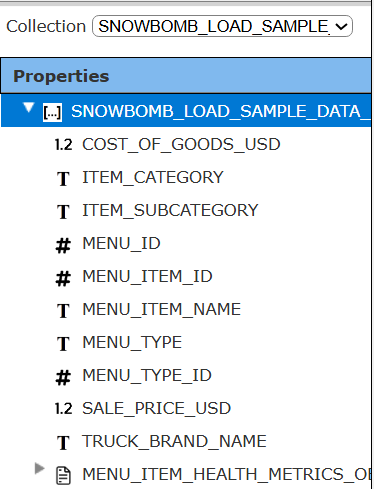
Below is information on a sample SNOWFLAKE_LEARNING_DB table.
A sample row is shown below.
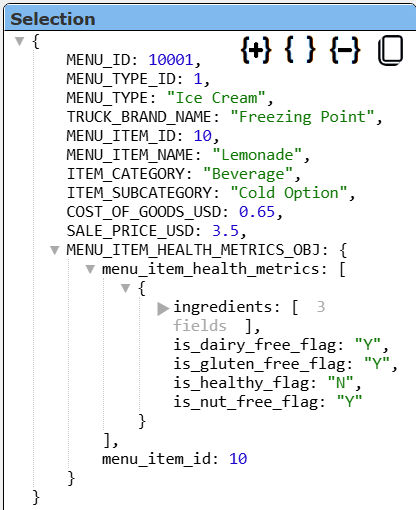
Notice that the MENU_ITEM_HEALTH_METRICS_OBJ is a true JavaScript object in the row. WIth Qarbine, there is no extra programming required to interact with the object in its native form.
Vector Searching
Vector searching provided a means to find similar rows based on embeddings which have been computed for text. This is in contrast to exact string matches or regular expression matching. For details on the VECTOR datatype see https://docs.snowflake.com/en/sql-reference/data-types-vector
Snowflake Cortex provides four vector similarity functions:
- VECTOR_INNER_PRODUCT,
- VECTOR_L1_DISTANCE,
- VECTOR_L2_DISTANCE, and
- VECTOR_COSINE_SIMILARI.TY
See this page for links to these functions https://docs.snowflake.com/en/sql-reference/functions-vector
For details about embeddings and their use in similarity searching see https://docs.snowflake.com/en/user-guide/snowflake-cortex/vector-embeddings
Given this table definition
CREATE OR REPLACE TABLE documents (
    doc_id INTEGER,
    doc_text VARCHAR,
    doc_vec VECTOR(FLOAT, 768)
);
It can be populated using
INSERT INTO documents (doc_id, doc_text)
VALUES
    (1, 'How do I install the Snowflake CLI?'),
    (2, 'What are the best practices for data security in Snowflake?'),
    (3, 'How can I optimize my Snowflake queries?'),
    (4, 'What is the Snowflake Data Cloud?');

-- 3. Generate and store embeddings
UPDATE documents
SET doc_vec = SNOWFLAKE.CORTEX.EMBED_TEXT_768('snowflake-arctic-embed-m', doc_text)
WHERE doc_vec is null;
You can add additional rows as desired.
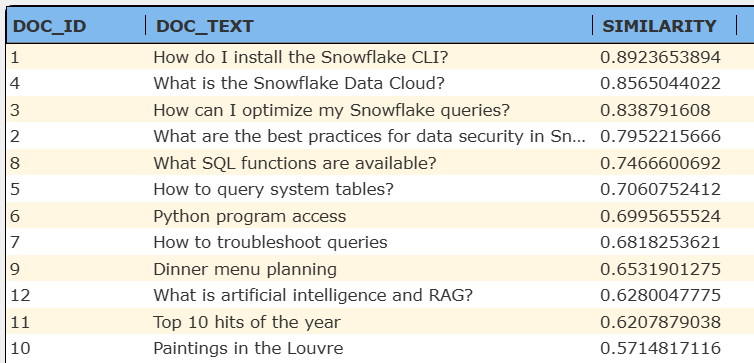
A sample vector query is shown below.
SELECT doc_id, doc_text,
VECTOR_COSINE_SIMILARITY( doc_vec,
        SNOWFLAKE.CORTEX.EMBED_TEXT_768('snowflake-arctic-embed-m',
             'How to set up Snowflake?')
    ) AS similarity
FROM documents
ORDER BY similarity DESC
LIMIT 3;
Below is a sample answer set when the above is run in the Data Source Designer.
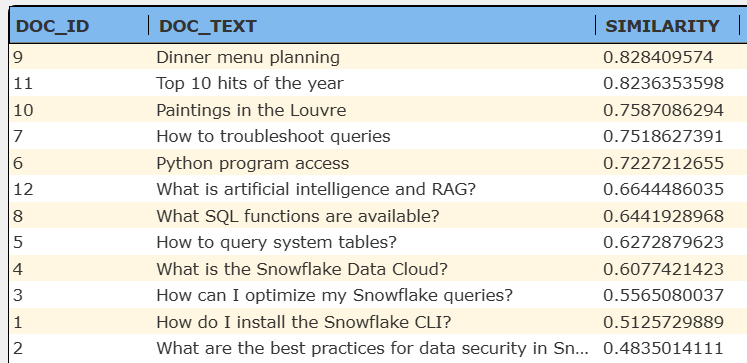
Qarbine variables can easily be used in this query to provide a more dynamic interaction.Adjusting the query specification to have a variable placeholder as shown below
SNOWFLAKE.CORTEX.EMBED_TEXT_768('snowflake-arctic-embed-m',
             @userPhrase)
    ) AS similarity
results in a prompt for the variable

Enter a phase

and click

An answer set is shown below.
Array Handing
Querying columns with ARRAY datatype returns the array of values. For example, given this table definition
CREATE OR REPLACE TABLE products (
    product_id INTEGER,
    product_name VARCHAR,
    sizes ARRAY
);
and inserted row
INSERT INTO products (product_id, product_name, sizes)
SELECT
    1,
    'T-Shirt',
    ARRAY_CONSTRUCT('XS', 'S', 'M', 'L', 'XL');
the query
SELECT * FROM products;
returns the answer set

The answer set row is shown below.

Notice that the SIZES are in their natural JavaScript object array form.
Snowflake extends standard SQL with specialized syntax and functions to query semi-structured data directly. For example, users can access nested fields using dot notation or the :: casting operator, and flatten arrays with the FLATTEN function to convert nested data into a relational format. This allows for efficient querying and analysis of semi-structured data within the same SQL environment as structured tables.
For example, this query
SELECT product_id, product_name, f.value AS size
FROM products,  LATERAL FLATTEN(sizes) f;
returns the answer set

In general such answer set explosion is not at all necessary in Qarbine as the array can be interacted with in its native JavaScript form.
Manipulating Row Shape
Qarbine can be directed to further modify the answer set elements This is done using ‘pragmas” which are discussed in the general Data Source Designer documentation. The most common pragma likely to be used is “pullFieldsUp CSV_list_of_fields”.
This answer set can be simplified by using Qarbine pragmas as shown below.
SELECT * FROM COLORS
The answer set is shown below.

A sample answer set row is shown below.

This answer set can be simplified by using Qarbine pragmas as shown below.
#pragma pullFieldsUp JSON_DATA
select * from COLORS
The answer set is shown below.
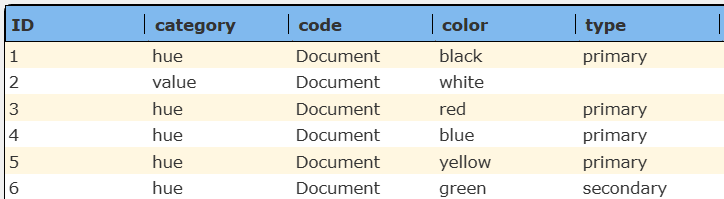
A sample answer set row is shown below.

The fields that were previously within the JSON_DATA field object have been pulled up a level. This makes it more convenient to reference field values in a template formula. Access to the result row values of interest in a template formula may now use either
@current.category
or
#category
This example can be found at “example/Snowflake/JSON colors 1 with pragma”.
The attribute field values across an answer set may be very diverse so the Data Source Designer’s columns may be incomplete.
The above sample data is based on the article at
https://www.snowflake.com/en/blog/automating-snowflakes-semi-structured-json-data-handling/
Object Handling
The OBJECT datatype is handled by Qarbine in a similar way as the JSON datatype described above. Given this table definition
CREATE OR REPLACE TABLE employee_info (
    employee_id INTEGER,
    info OBJECT
);
Snowflake provides the OBJECT_CONSTRUCT function to build an OBJECT from key-value pairs. Data can be inserted using
INSERT INTO employee_info (employee_id, info)
SELECT
    101,
    OBJECT_CONSTRUCT('name', 'Alice', 'age', 30, 'department', 'Engineering');
Running this query
SELECT * FROM employee_info;
returns the answer set

The first row is shown below.

The INFO fields can be pulled up using the technique described above.
Miscellaneous Queries
To get a list of databases run
show databases
To get the current database run
select CURRENT_DATABASE()
To get a list of tables run
show table
To get a table summary run
desc table PRODUCTS
To get the columns of a table run a query similar to
show columns in products
To obtain clustering key information run
select SYSTEM$CLUSTERING_INFORMATION('PRODUCTS')
To get information on database users run
show users
Troubleshooting
You can obtain the low level query being sent from Qarbine to Snowflake by pressing the ALT key and clicking the run icon. There are several Snowflake company and third party querying tools available to test your SQL.
Snowsight (Web UI) is the primary web interface for Snowflake, offering a modern, feature-rich environment for writing and running queries and visualizing results. A good starting point can be found at https://docs.snowflake.com/en/user-guide/ui-snowsight-quick-tour
SnowSQL is a command-line tool for executing SQL, managing Snowflake objects, and running scripts. A good starting point can be found at https://docs.snowflake.com/en/user-guide/snowsql